
How to recharge your terminal quickly and easily
Add credit to your terminal from the Milta B2B app in four quick steps, and keep selling without a pause.
You can recharge your Milta terminal from the Milta B2B app in a few minutes. Log in to the app, tap Add Credit for ETILL, and follow the steps below. Once it is done, your terminal is ready to keep serving customers and growing your sales.
Find your terminal
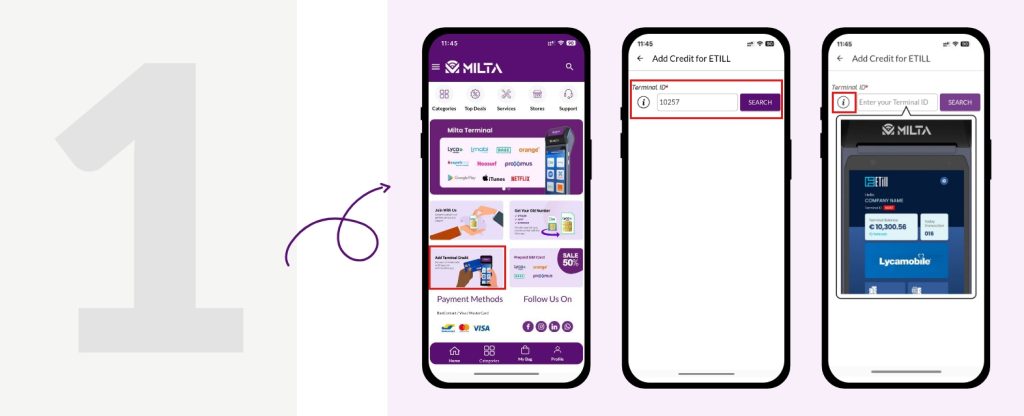
On the Add Credit for ETILL screen, enter your Terminal ID and tap Search.
Not sure where your Terminal ID is? Tap the i icon next to the field to see where it is shown on your terminal.
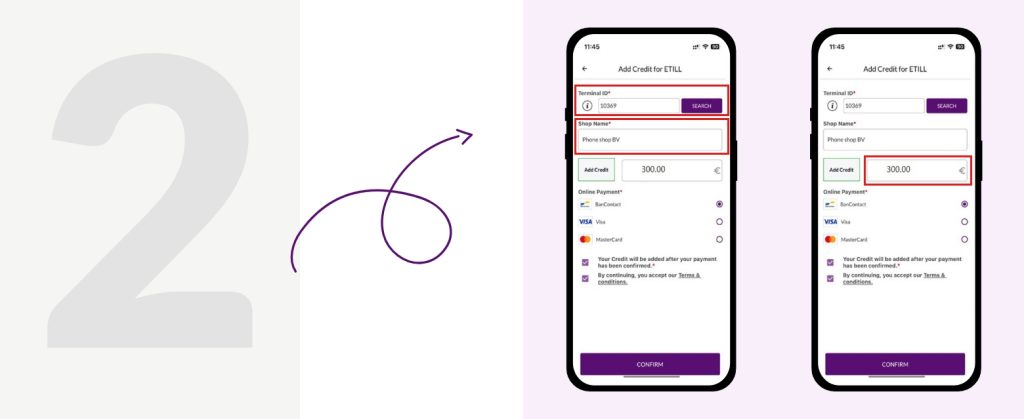
Check your shop and enter the amount
Your shop name appears under the Terminal ID. Check that it is correct, then enter the amount of credit you want to add.
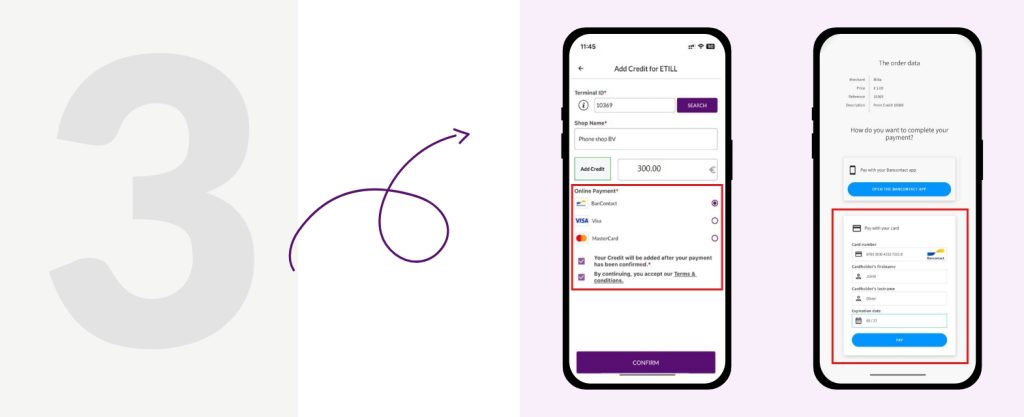
Choose how to pay
Pick an online payment method, such as Bancontact, Visa or Mastercard, tick the two boxes and tap Confirm. A secure payment page opens, where you complete the payment with your card.
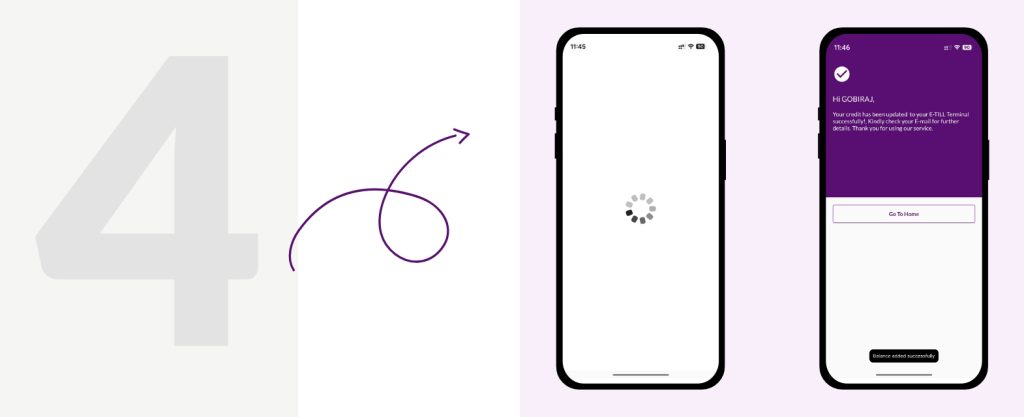
Wait for the confirmation
Stay on the screen while the payment goes through, and don't press Back or reload. When the confirmation screen tells you your credit has been added to your E-TILL terminal, you're done.
If the confirmation doesn't appear, start again from the first step.
More from the blog
All articlesEverything you need to know before you switch to an eSIM
What an eSIM is, how it differs from a physical SIM card, and the pros and cons to weigh before you switch.
All you need to know about POS Terminal
What a POS terminal does, buying versus leasing, and why it matters to both retailers and their customers.